iM CS2 Settings: Crosshair, Video & Config Guide
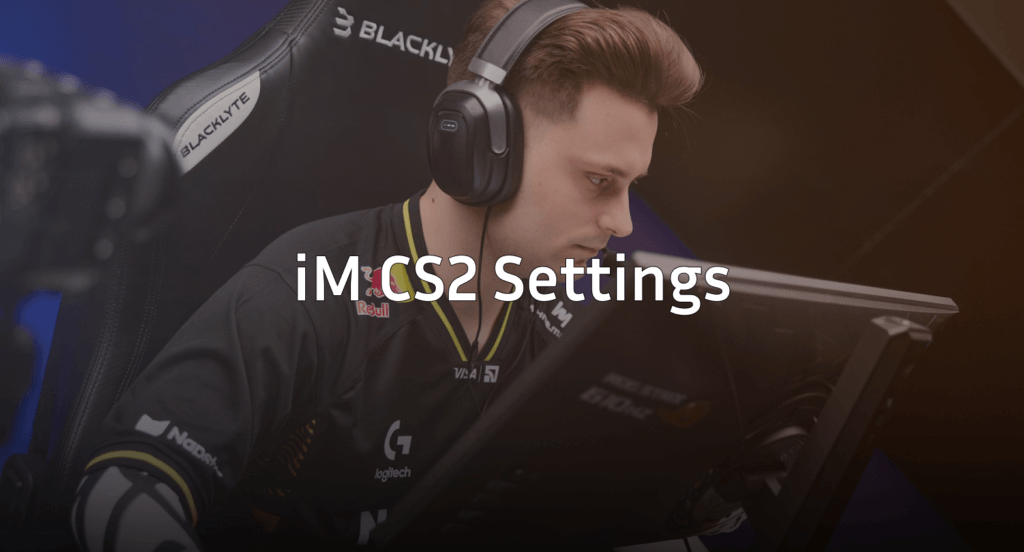
Want to copy the exact iM CS2 settings that this talented player uses to dominate servers? You’re in the right place.
iM has been making waves in the competitive CS2 scene with crisp aim and smart positioning. His settings balance visual clarity with competitive performance, making them worth studying for players looking to improve.
In this guide, we’ll break down his complete setup—mouse, crosshair, video settings, and keybinds.
iM’s Mouse & Sensitivity Settings
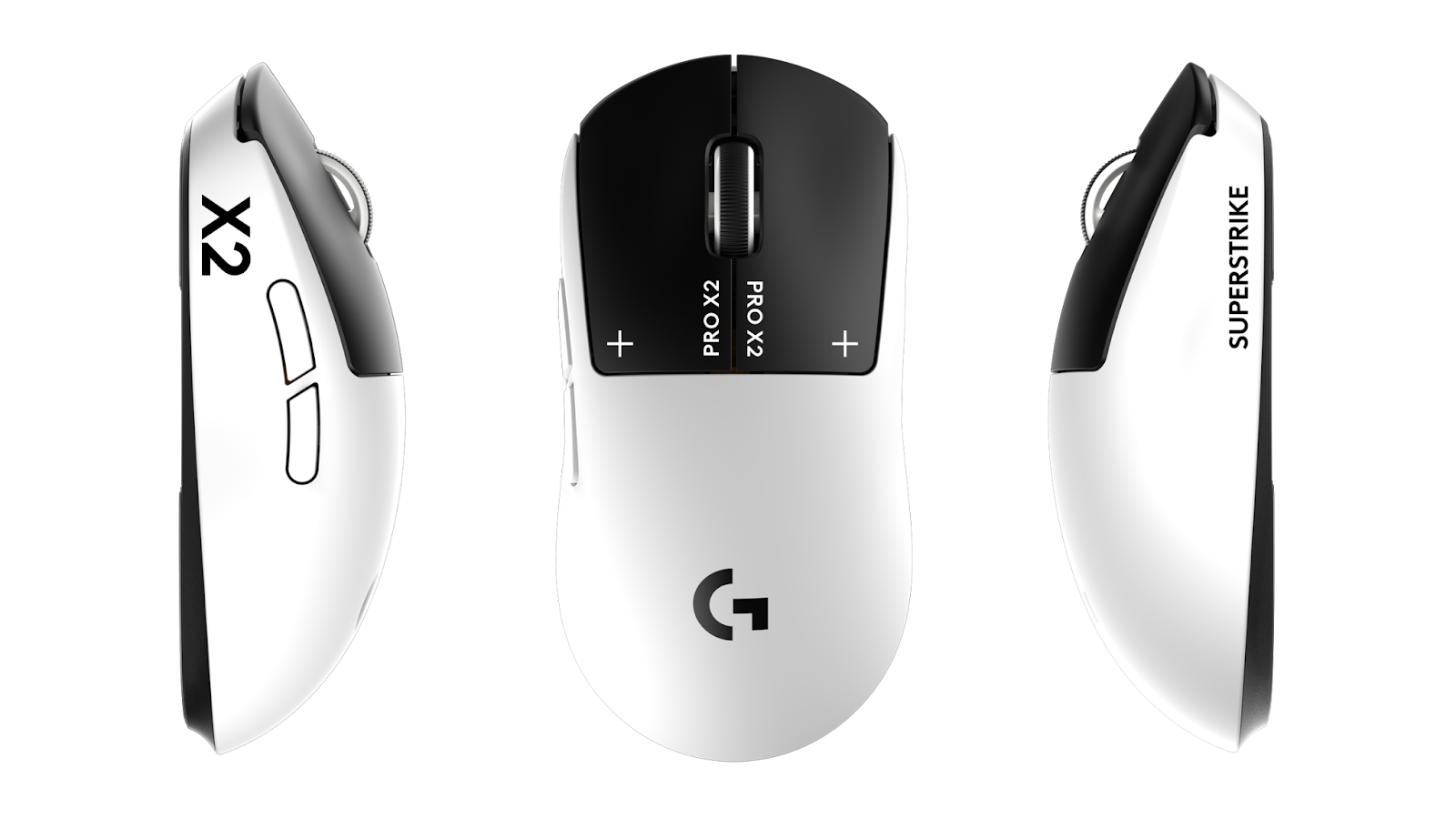
Precision starts with your mouse configuration. iM uses settings that allow for both quick flicks and precise micro-adjustments.
| Setting | Value |
|---|---|
| DPI | 800 |
| In-Game Sensitivity | 1.0 |
| eDPI | 800 |
| Zoom Sensitivity | 1.0 |
| Windows Sensitivity | 6 |
| Raw Input | On |
An eDPI of 800 sits in the medium-low range, giving iM excellent control for rifle sprays while still allowing comfortable 180-degree turns. This sensitivity works well for players who use a mix of arm and wrist aiming.
If you’re switching from a higher sensitivity, lower yours gradually over a few days rather than making the jump instantly.
Crosshair Settings
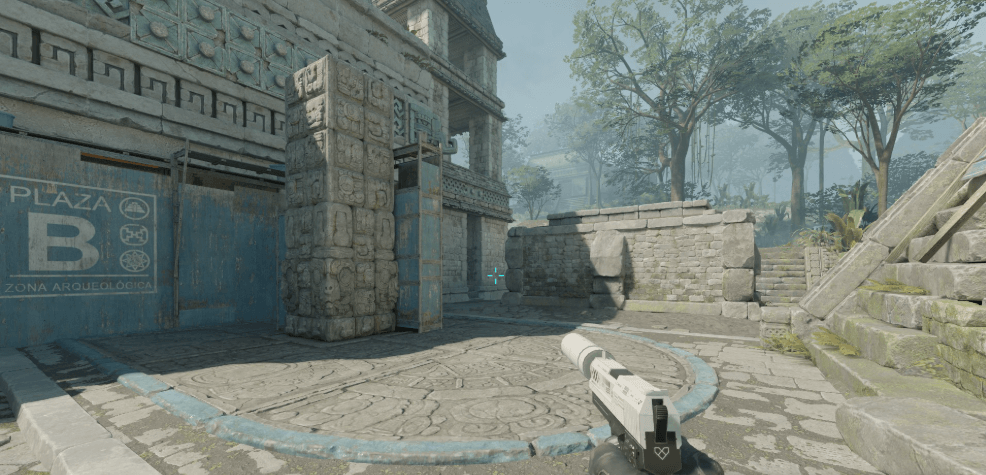
iM’s crosshair prioritizes visibility without cluttering the screen. Here’s how to replicate it:
cl_crosshairsize 1.5cl_crosshairgap -3
cl_crosshairthickness 0
cl_crosshairdot 0
cl_crosshaircolor 1
cl_crosshair_drawoutline 0
cl_crosshairstyle 4
| Setting | Value |
|---|---|
| Style | Classic Static |
| Size | 1.5 |
| Gap | -3 |
| Thickness | 0 |
| Dot | Off |
| Color | Green |
| Outline | Off |
This creates a tight, static crosshair that doesn’t expand during movement or shooting. The small size helps with precise headshot placement, especially when holding angles with the AWP or tapping with the AK-47.
Video Settings for Maximum Performance

iM optimizes his video settings for high FPS and clear enemy visibility. Competitive players typically sacrifice visual flair for performance.
| Setting | Value |
|---|---|
| Resolution | 1280×960 |
| Aspect Ratio | 4:3 Stretched |
| Display Mode | Fullscreen |
| Refresh Rate | 360 Hz |
Advanced Video Settings
| Setting | Value |
|---|---|
| Boost Player Contrast | Enabled |
| V-Sync | Disabled |
| NVIDIA Reflex Low Latency | Enabled |
| Multisampling Anti-Aliasing | 4x MSAA |
| Global Shadow Quality | Medium |
| Model/Texture Detail | Low |
| Texture Filtering Mode | Bilinear |
| Shader Detail | Low |
| Particle Detail | Low |
| Ambient Occlusion | Disabled |
| High Dynamic Range | Performance |
| FidelityFX Super Resolution | Disabled |
The 4:3 stretched resolution makes player models appear wider, potentially easier to hit. Many pros like NiKo and shroud have used similar stretched setups throughout their careers.
Keeping shadows on Medium ensures you can spot enemy shadows peeking corners—a crucial visual cue on maps like Mirage and Inferno.
For more optimization tips, check out our CS2 graphic settings guide and CS2 NVIDIA settings breakdown.
Viewmodel Settings
iM’s viewmodel keeps weapons positioned to minimize screen obstruction:
viewmodel_fov 68viewmodel_offset_x 2.5
viewmodel_offset_y 0
viewmodel_offset_z -1.5
viewmodel_presetpos 3
cl_righthand 1
The high FOV of 68 pushes the weapon model further from center screen, giving you better peripheral awareness during firefights.
Keybind Configuration
Efficient keybinds reduce fumbling during clutch moments. Here are iM’s essential binds:
| Action | Key |
|---|---|
| Jump | Space / Mouse Wheel Down |
| Crouch | Left Ctrl |
| Walk | Left Shift |
| Inspect Weapon | F |
| Drop Weapon | G |
| Use | E |
Utility Binds
Quick grenade access separates good players from great ones:
| Utility | Key |
|---|---|
| HE Grenade | 4 |
| Flashbang | Mouse4 |
| Smoke | Mouse5 |
| Molotov/Incendiary | C |
Binding flashbangs and smokes to mouse buttons allows you to throw utility while keeping movement keys accessible. This matters when executing onto sites or supporting teammates with quick flashes.
Launch Options
iM keeps launch options minimal, letting the game handle most optimizations:
-novid -tickrate 128| Option | Purpose |
|---|---|
| -novid | Skips intro video |
| -tickrate 128 | Sets offline server tickrate |
Modern CS2 handles most optimizations internally, so bloated launch options often cause more problems than they solve.
Gear Setup
Your hardware matters. Here’s what iM uses:
| Component | Product |
|---|---|
| Mouse | Logitech G Pro X Superlight |
| Mousepad | Artisan FX Zero |
| Keyboard | Wooting 60HE |
| Monitor | 360Hz Gaming Monitor |
| Headset | HyperX Cloud II |
The Wooting 60HE features analog switches that allow for adjustable actuation points—useful for counter-strafing and movement techs.
Tips for Implementing These Settings
Copying pro settings won’t instantly make you better, but they provide a solid foundation. Here’s how to adapt them:
- Start with sensitivity — If iM’s eDPI feels too slow, increase it slightly until comfortable
- Test the crosshair — Play deathmatch for 30 minutes before judging
- Adjust resolution last — Stretched takes time to adapt to; give it a week
Consider pairing your new setup with fresh CS2 skins to complete the transformation. Sometimes a new M4A1-S or Desert Eagle skin adds that extra motivation to grind.
Conclusion
iM’s CS2 settings combine a medium-low sensitivity, tight static crosshair, and performance-focused video options. The 4:3 stretched resolution and minimal visual clutter help him focus on what matters—hitting shots.
Copy these settings as a starting point, then tweak based on your playstyle. What works for a pro might need small adjustments for your setup and preferences.
Ready to upgrade your loadout to match your new config? Check prices on cs2.ad for the best deals on skins and items.